
Player Attack Move Click issues an attack-move order at your cursor without a separate confirmation click. Regular Player Attack Move first asks you to choose a location or target. Click removes that extra step; it does not make your attacks stronger or automatically choose the enemy carry.
For a starting setup, bind Player Attack Move Click to an accessible key and enable Attack move on cursor. Keep a separate movement command. For champion-only targeting, use a direct targeted click rather than relying on attack move to filter the nearby units.
These instructions cover Point & Click controls, not Keyboard (WASD).
Three commands that look similar but behave differently
Start with the order you want to give. Clicking a champion directly and asking attack move to find something nearby are different instructions.
| Command | What you do | What to watch for |
|---|---|---|
| Player Move Click, normally right-click | Click an enemy to attack it, or ground to move there. | Missing the enemy can send you walking toward it. |
| Player Attack Move | Press its key, then confirm a target or location, normally with left-click. | You still have to confirm; pressing the key alone is not the completed attack order. |
| Player Attack Move Click | Press its bound key or combination at the cursor position. | It issues the order immediately, including movement when no nearby target is acquired. |
The current client labels are Riot-origin data mirrored by CommunityDragon. The League of Legends Wiki’s attack-command reference describes the confirmation and acquisition behavior.
Regular attack move can also display your attack-range indicator before confirmation. Click does not provide that same aiming pause. If the range display helps you learn spacing, keeping regular attack move is a reasonable choice. If the extra click is what you keep missing, Click is worth trying. There is no requirement to abandon one forever when you bind the other.
Set up the command before changing your whole mouse layout
Enter Practice Tool, open Options with Escape, and work in the Point & Click hotkeys. Note your existing bindings before changing them so you can put them back. Under Player Movement, locate Player Attack Move Click. Bind it to a key you can press while still reaching your abilities and movement input.
You could use A, but check what it already does. Replacing regular attack move with Click removes the confirmation step from a familiar key. A mouse side button is another option, provided reaching it does not disturb your grip or replace something you still need.
Check whether you are editing the general control profile or a champion-specific one. Riot’s April 2026 input update introduced champion-specific bindings for both control schemes. An Ashe-specific change is not a reason to assume your next champion uses the same setup.
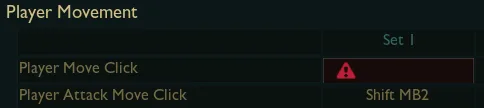
Keep Player Move Click bound. If a dangerous spell is coming toward you, use that movement order to dodge instead of asking attack move to find another shot. You do not have to attack during every step of a retreat.
Left-click binding no longer requires an old file-edit workaround
Riot’s 2026 input overhaul allows MB1, the left mouse button, to be assigned directly inside Options. You do not need to start by editing a configuration file or applying an operating-system remap.
Before moving attacks to MB1, check your other mouse actions. Riot’s discussion of WASD’s expanded mouse options shows separate Select Object, Interact with Object, Auto Attack and Cast Ability bindings. Inspect the actions available in your chosen profile rather than assuming that illustration matches your entire Point & Click menu.

After a mouse-button change, select a unit, interact with an object and confirm a spell before leaving Practice Tool. A convenient attack button is little help if the same change leaves you struggling to cast.
Attack move on cursor changes the preference, not the range
In the Game settings, enable Attack move on cursor if you want nearby-target selection to follow your mouse position. Riot’s current option description distinguishes the two preferences: enabled prioritizes the target closest to the mouse click; disabled prioritizes the target closest to your champion.
Suppose two enemies are beside each other. Aim near the one you want to hit. A click far behind your own champion gives cursor-based selection much less useful information, even if it feels comfortable to keep the mouse there while retreating.
This preference does not let you pick targets anywhere on the screen. The documented acquisition behavior searches near the cursor within or near attack range, then falls back to searching around your champion if that search finds nothing. If it finds no target, the order can move you toward the chosen location.
A minion beside the enemy can still win the nearby-target search, and a click far beyond your range can become unwanted forward movement. Cursor priority does not prevent either mistake.
Target Champions Only is for direct selection
Use Target Champions Only with a direct click on the champion you want. Do not depend on an attack-move ground click to choose that champion for you.
The Point & Click control reference describes Target Champions Only as a cursor-selection restriction; the attack-move reference describes a separate acquisition scan. Those descriptions do not establish a champion-only filter for automatic acquisition. Direct selection is the supported workflow to use here.
In a crowded wave, activate Target Champions Only and place the cursor on the champion you mean to attack. With default movement controls, that direct attack is a right-click. You still have to aim. The setting does not decide which opposing champion deserves your next shot, and it does not make an unsafe walk into attack range safe.
The Game menu also has Treat ‘Target Champions Only’ as a toggle. Enabled, one press switches the restriction on and another switches it off. Disabled, hold the key while you need it. Choose whichever behavior you can reliably turn off before returning to minion last-hits. The current label and the settings reference support that distinction.
Avoid confusing Player Attack Only Click with either attack-move command. The current command reference specifies that it requires a valid target under the cursor; without one, that command does nothing. It can suit a player who wants a missed attack click not to become a new movement order, but it does not supply attack move’s nearby-target search.
Practice the retreat, not just the attack key
Choose a familiar ranged champion such as Ashe and place a target dummy in Practice Tool. The first goal is to see a shot leave before giving the retreat order.
- Stand within range and issue one attack-move click near the dummy. Observe whether an attack actually fires.
- After the projectile launches, issue a separate movement click toward open ground away from the dummy.
- Attack again when your next attack is ready, then move again. Start slowly enough to distinguish an attack that fired from one you canceled.
- Repeat near minions. Compare cursor placement beside the intended target with a click beside a minion, then use a direct champion-targeted attack where precise selection matters.
In Point & Click, moving during a normal attack’s windup, before it fires, can cancel it. The basic-attack reference documents the windup and interruption conditions. Pressing attack move more often does not give extra attack speed. If the shot never launches, slow the sequence down before changing another setting.
An isolated dummy makes the sequence easier to learn, but add minions before trusting the setup in lane. Check which unit receives the attack as carefully as you check whether the attack fired.
Diagnose what happened before rebinding again
If you walked forward, check whether you issued a movement click, selected an out-of-range target, or gave an attack-move destination without an acquired target. A Stop command can cancel your current order; it does not undo distance already traveled.
If you attacked a minion, look at cursor placement and command choice. For a precise champion hit, switch from the nearby-target search to a direct targeted click.
If you stopped attacking when the enemy entered fog, do not assume the bind broke. A target leaving vision changes whether it can be acquired. You need vision and a safe position, not another key press into unwarded ground.
When the right unit takes the shot and your retreat input works, leave the bindings alone for a while. In the next practice sequence, watch the destination of every retreat click instead of changing the attack key again.